
Photo Collage Designs bring multiple photographs together in one creative layout. Instead of displaying every picture separately, designers can arrange selected images into a single composition that tells a story. This format is useful for birthdays, family memories, wedding photography, portfolios, and social media posts.
For Photoshop users, Photo Collage Templates provide a starting point for creating organized and attractive photo arrangements. They can help reduce the time spent planning image positions, spacing, and overall composition, especially when working with several photographs for a client.
Freefile360.com focuses on graphic design resources for creative professionals and Photoshop users. In this article, you will learn about Collage Templates, their practical uses, important editing considerations, and how to prepare a customized collage for your project.
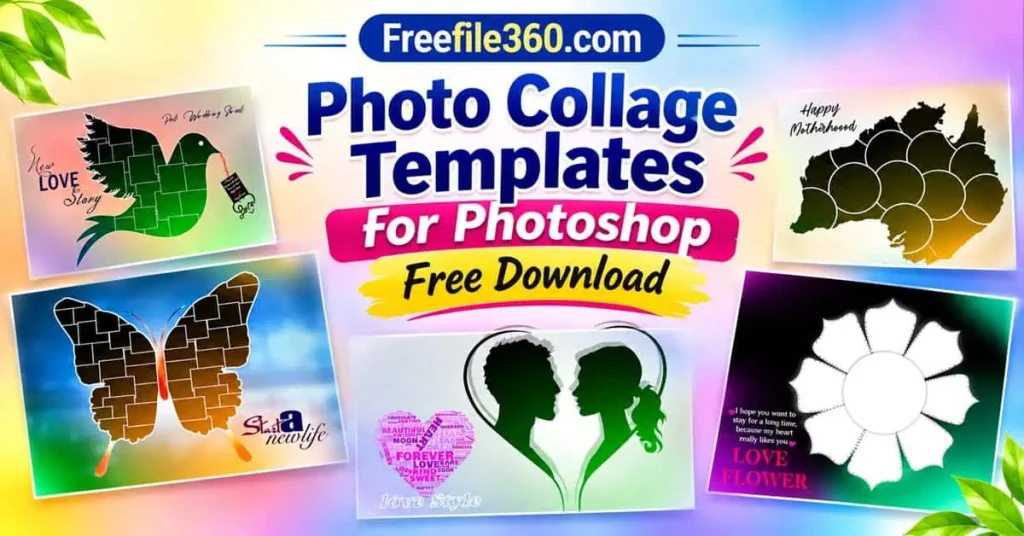
Photo Collage Templates
Table of Contents
Photo Collage Templates — Understanding Their Design and Purpose
Photo Collage Templates are pre-arranged layouts that allow designers to combine multiple photographs within one composition. They provide a visual structure for positioning images, maintaining spacing, and creating a balanced design. Depending on the available file format, users may also be able to customize backgrounds, text, colors, and other elements.
A Photoshop Collage Template is particularly useful when several pictures need to be presented together. For example, a photographer can combine wedding highlights, family portraits, travel memories, or birthday photographs into one attractive design.
Photoshop Collage Templates Free Download resources may be available in different formats and layouts. Some PSD files contain separate editable layers, while others may have a simpler structure. Therefore, checking the actual file details before downloading is important.
#01

Photo Collage Templates
#02

Get More: 30 New Karizma Album Frame PNG Free Download.
#03

#04
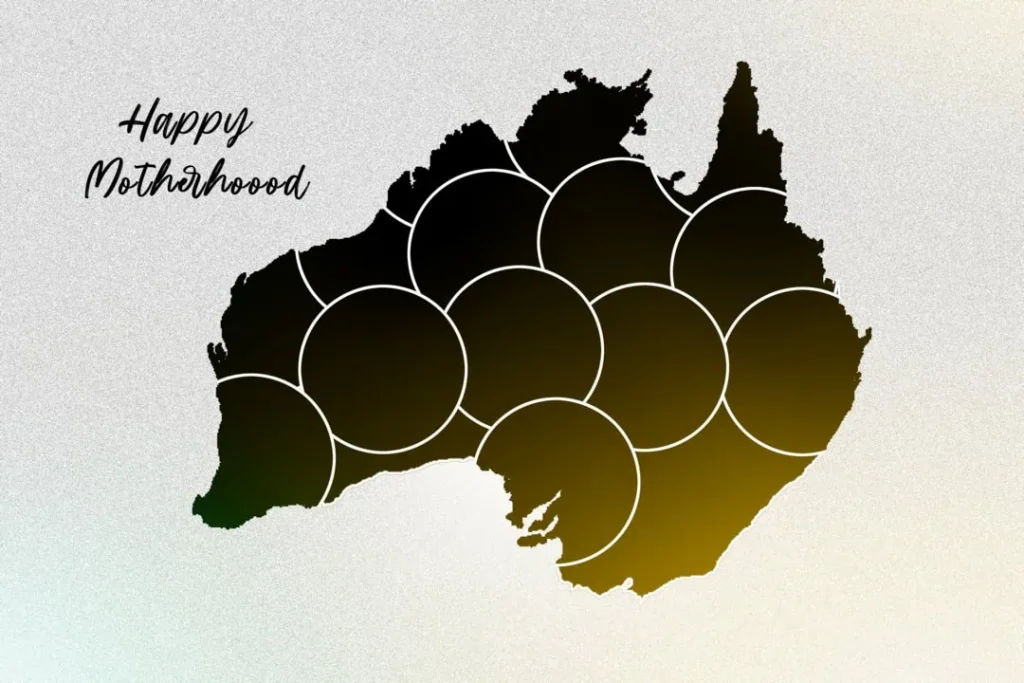
#05

#06
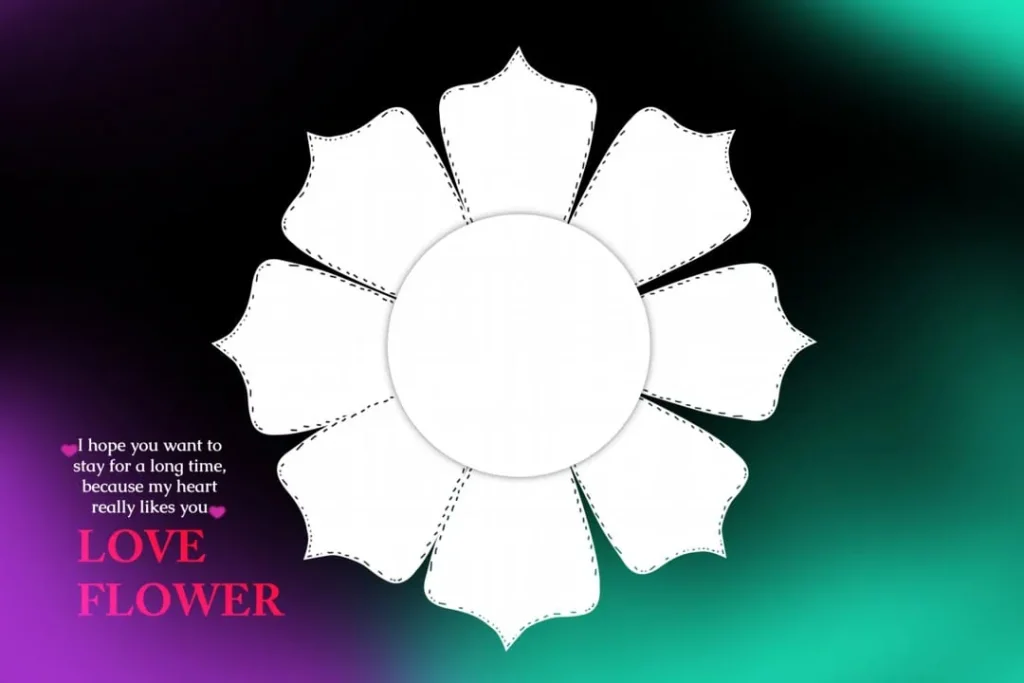
Photo Collage Templates
Get More: 1000+ 12X36 Wedding Album PSD Free Download.
#07

#08

#09

#10

Explore Photo Collage Design Resources on Freefile360.com
Finding a suitable layout is an important part of creating a professional photo collage. The right composition depends on the number of photographs, their orientation, the available space, and the purpose of the final design.
Freefile360.com is the website for this article’s collection of graphic design resources. Visitors looking for a collage template can explore the relevant resource page when its download link is published.
Before selecting a design, consider the following points:
- Number of photographs: Choose a layout that can accommodate the images you want to include.
- Image arrangement: Look for a composition that supports both portrait and landscape photographs when needed.
- Background and spacing: Consider how the background and gaps between photographs affect the overall appearance.
- Editing requirements: Check whether the available file supports the changes you want to make in Photoshop.
The exact download URL, file dimensions, resolution, format, and licensing information have not been provided. Check these details on the individual resource page before using a particular file.
How to Download and Use a Photo Collage Template in Photoshop
Follow these steps to customize a collage design for your project.
- Find the Resource: Visit the relevant Photo Collage resource page on Freefile360.com once its URL is available. Read the download instructions and confirm the file format before proceeding.
- Extract the Downloaded Archive: If the resource is supplied as a ZIP file, extract it using a suitable archive utility. Keep the original downloaded archive as a backup.
- Open the File in Photoshop: Launch Adobe Photoshop and open the downloaded PSD file, if provided. Check the document dimensions, resolution, color mode, and available layers before editing.
- Replace the Photographs: If the template contains editable image layers or Smart Objects, use the supported replacement method to insert your photographs. Adjust cropping and positioning so important subjects remain visible.
- Customize the Design: Modify editable text, background colors, borders, and other available elements. Maintain consistent spacing and avoid adding unnecessary decorative details that distract from the photographs.
- Prepare the Final Output: Review the complete design at different zoom levels. Check image detail, document dimensions, color settings, and any required print margins. Save an editable PSD copy and export the final image in the format required for your intended use.
Improve Your Photoshop Skills Through Collage Design
Working with collage layouts can help beginners understand important graphic design principles. A pre-arranged composition provides an opportunity to study how photographs are positioned, how visual balance is maintained, and how different elements work together.
For example, placing a larger photograph alongside several smaller images can create a clear visual hierarchy. The viewer naturally notices the main photograph first before exploring the supporting pictures.
Another useful exercise is experimenting with different photo arrangements. Try combining close-up portraits with wider photographs, or compare symmetrical layouts with more creative arrangements. These experiments can improve your understanding of photo composition and visual spacing.
For experienced designers, studying different Collage Template structures can also provide fresh ideas for client projects. Rather than copying an existing arrangement, use it as a reference and develop a composition that matches the client’s requirements.
Practical Tips for Better Photo Collage Results
- Choose photographs carefully: Select clear images with suitable lighting and consistent visual quality. Too many unrelated photographs can make a collage look crowded.
- Maintain balanced spacing: Keep appropriate gaps between photographs so individual images remain easy to identify.
- Use readable typography: If you include names, dates, or short messages, choose fonts that complement the photographs without overpowering them.
- Check the final dimensions: Match the document size and resolution to the intended use. For printing, confirm the printer’s color-profile, bleed, and binding requirements before exporting.
Frequently Asked Questions
1. Are Photo Collage Templates free to download?
Download conditions depend on the individual resource. Check the relevant Freefile360.com download page for pricing and access information before downloading.
2. Which software is required to edit Photoshop collage templates?
Adobe Photoshop is the intended software for PSD editing. Compatibility with other applications depends on their ability to open and preserve the particular PSD file structure.
3. Can I use collage designs for paid client projects?
Commercial use depends on the license attached to the individual resource. Always review its terms before using a template in paid photography or design projects.
4. What makes photo collage designs useful for photographers?
They allow photographers to present multiple pictures in one organized composition. They are useful for portfolios, event highlights, family photographs, and creative presentations.
5. How can I prepare a collage for printing?
Check the final document dimensions, image detail, color profile, and printer requirements. Also confirm bleed and binding margins before exporting the finished design.
Conclusion
Photo Collage Templates provide a practical starting point for combining multiple photographs into an organized and attractive composition. They are useful for graphic designers, photographers, photo studios, and Photoshop beginners who want to explore different photo arrangement techniques.
Visit Freefile360.com to explore relevant graphic design resources and Photo Collage Templates Free Download options when the collection page becomes available. Check the individual file specifications and license conditions before using any design in your personal or commercial projects.
Get More: